
Clean your Mac.
See it first.
Caches, logs and leftovers, sorted and sized. PixClean removes only what you select.
Download for macOS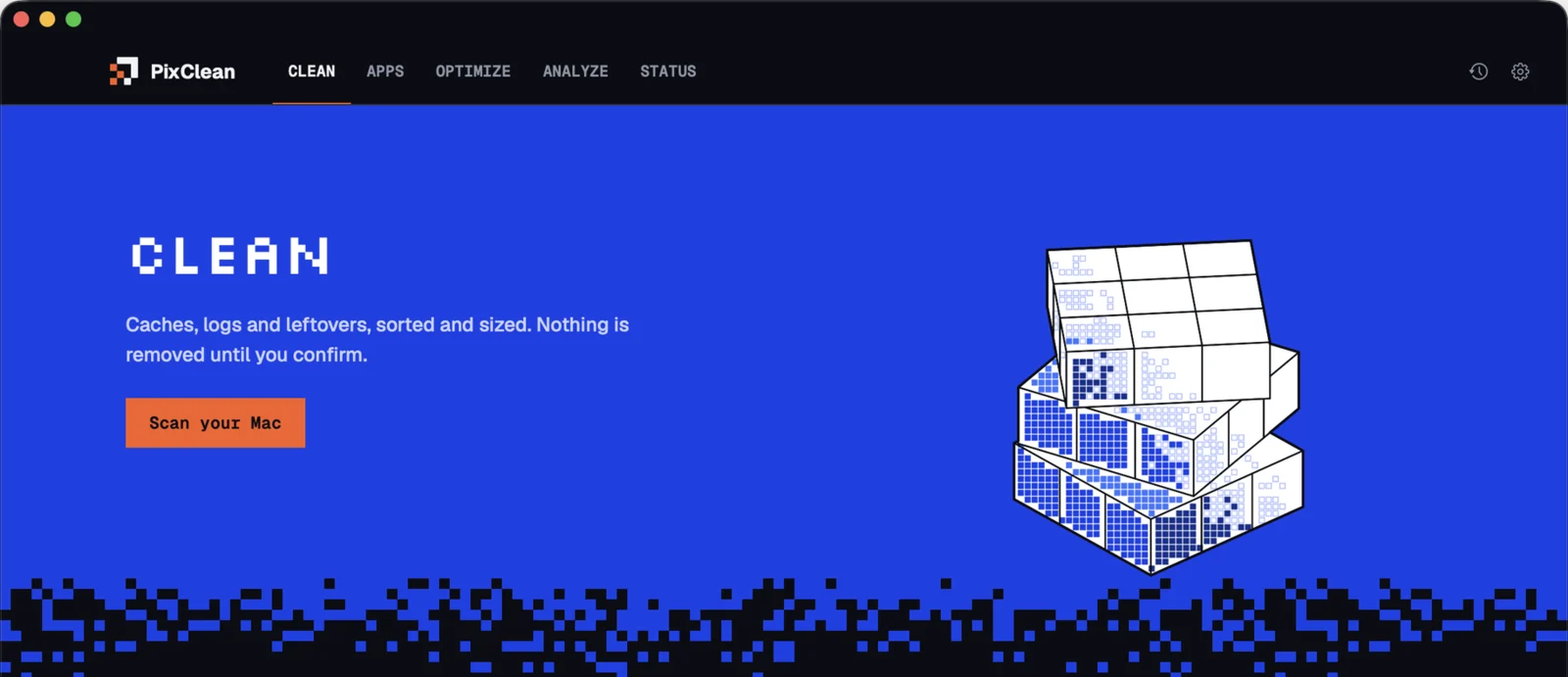
Five tabs.
One window.
- 01
Clean
Browser, chat and developer caches, rotated logs, installer files, data from removed apps and build folders inside your projects. Every item shows its size and location before anything is removed.
- 02
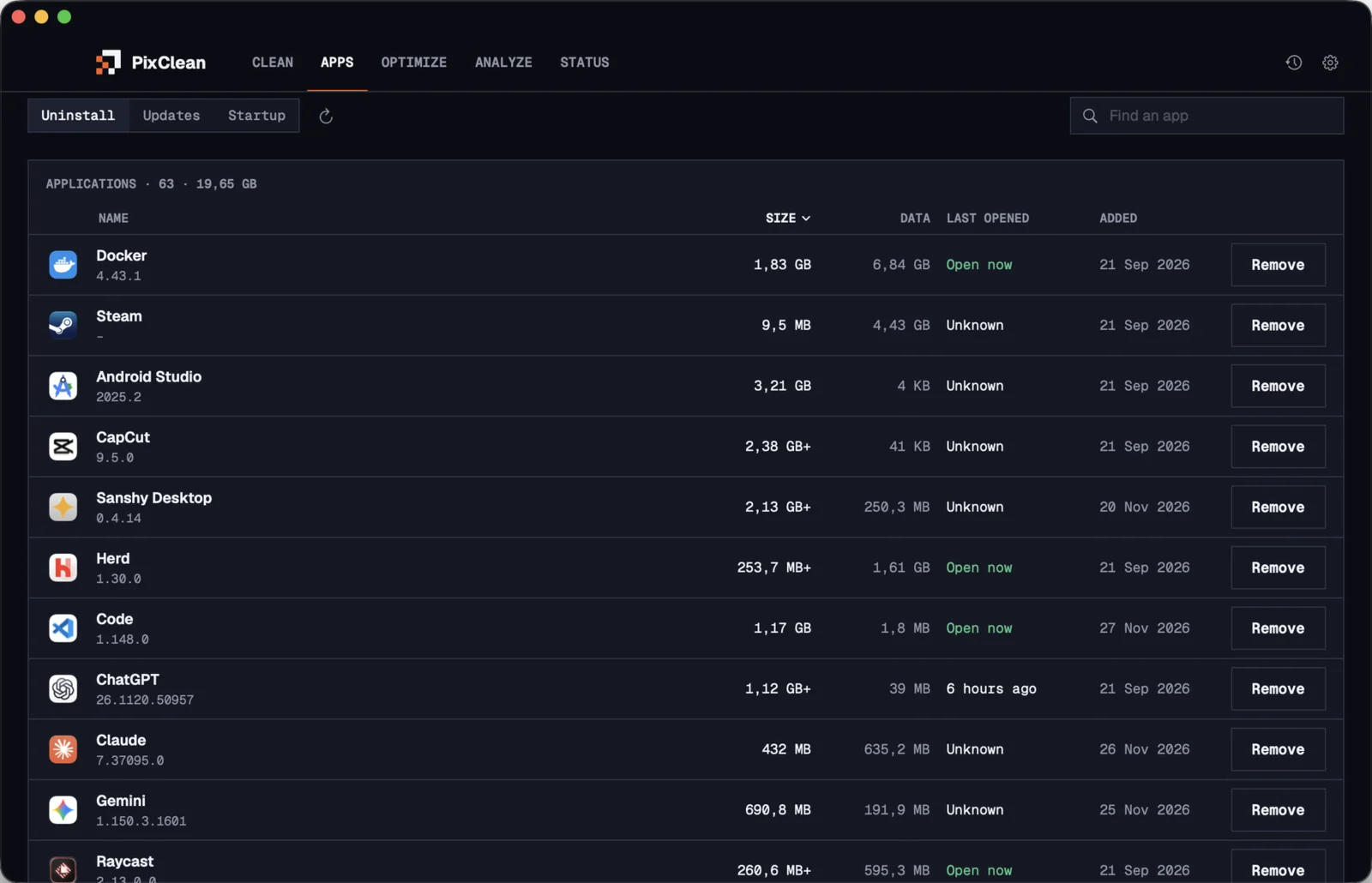
Apps
Remove an app together with its caches, preferences, containers and launch agents. Your own data stays unselected. Homebrew updates and startup items sit in the same place.
- 03
Optimize
Nineteen upkeep tasks, from Quick Look previews and app databases to Spotlight rules and launch agents with missing programs. Each task checks first and skips what is already fine.
- 04
Analyze
Every folder sized, largest first, with a map view, the largest files on the disk and an overview of the usual space takers.
- 05
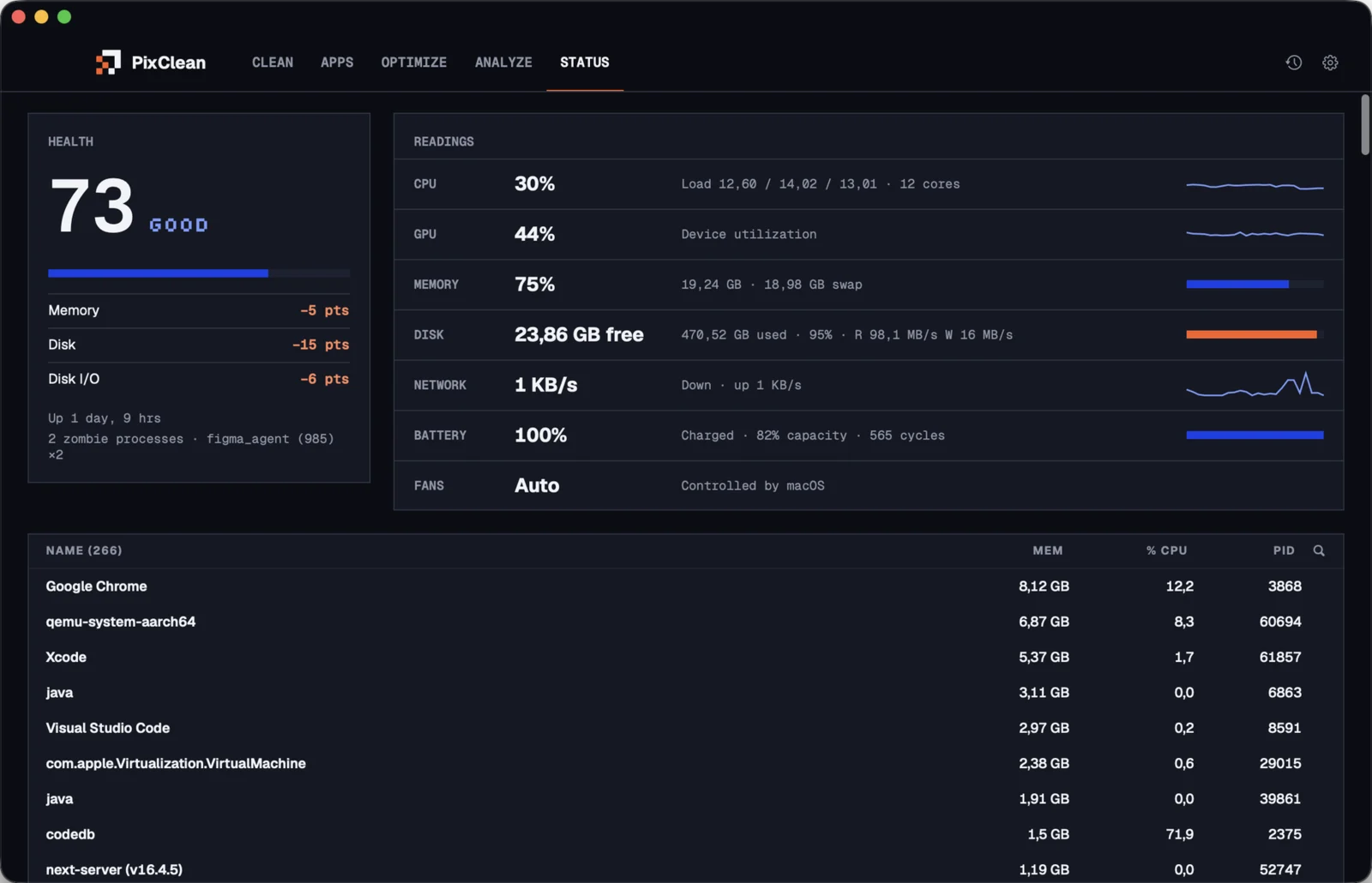
Status
A health score with the reasons behind it, plus CPU, GPU, memory, disk, network, battery and the processes using them.
Review
before removal.
PixClean runs on your Mac with no account and no analytics. It asks for your administrator password only for the few upkeep tasks that need it.
Download PixClean- Nothing is preselected unless it rebuilds on its own, such as a cache.
- Paths such as Homebrew’s API cache, pnpm’s dlx folder and Spotlight data are always kept.
- Caches that a running app or build tool is using are skipped until it quits.
- Folders tracked by Git or holding keys and .env files are never treated as build output.
- Choose Move to Trash in Settings to keep a way back. Each run is written to a local log.